Recent Blog Posts

All Blog Posts
Looking for something specific? Try searching here.
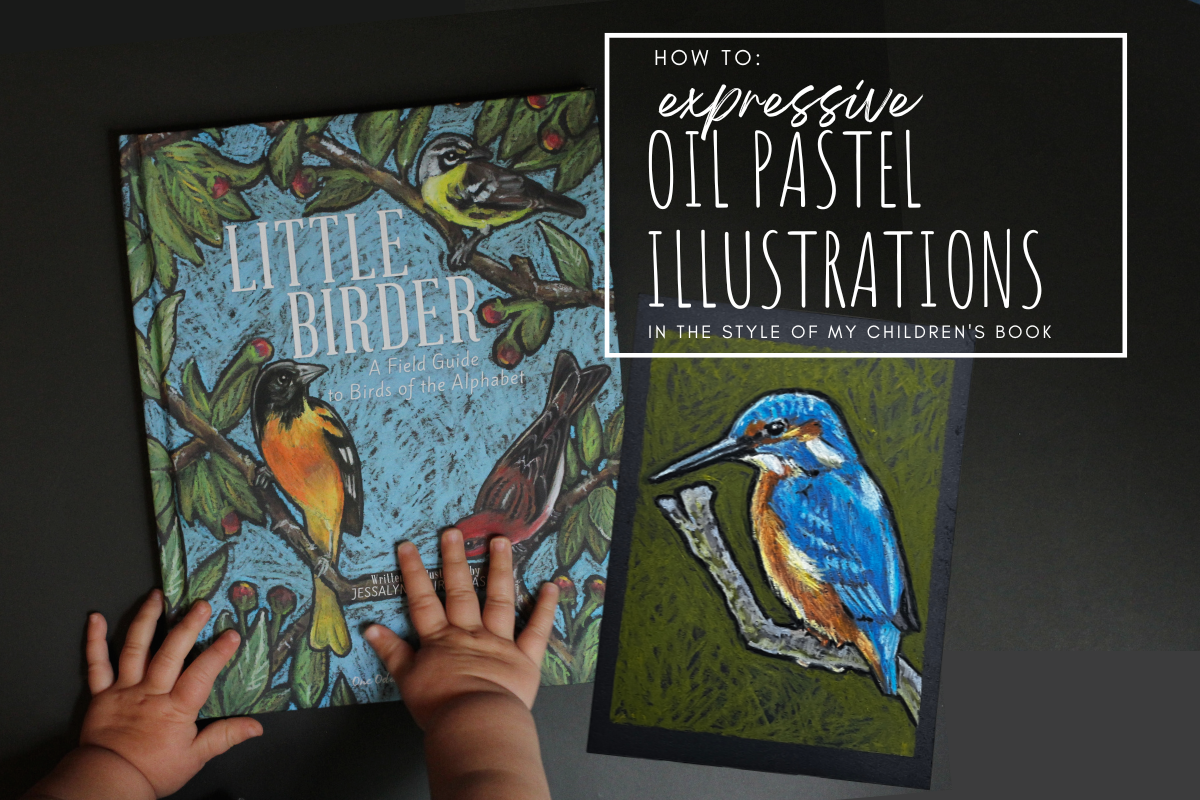
How to: Expressive Oil Pastel Illustrations (in the Style of the Children's Book Little Birder)
Do you want to use oil pastels but don’t know where to start? In this tutorial I will walk you through the steps to illustrate an oil pastel bird (or any subject matter) in the style of my children’s book “Little Birder: A Field Guide to Birds of the Alphabet”. This stye is bright and impactful and makes the most of oil pastel’s appealing qualities, but it does not require perfection or years of mastery and can be painted in a relatively short time.
This is a great place to start your oil pastel journey or continue to develop your own style using the versatile medium of oil pastels.
How To: Expressive Oil Pastel Illustrations
(in the Style of my Children’s Book)



This post may contain affiliate links. If you use these links to buy something I may earn a commission at no additional cost to you that allows me to continue to provide useful content. Thanks.
Do you want to use oil pastels but don’t know where to start? In this tutorial I will walk you through the steps to illustrate an oil pastel bird (or any subject matter) in the style of my children’s book “Little Birder: A Field Guide to Birds of the Alphabet”. This stye is bright and impactful and makes the most of oil pastel’s appealing qualities, but it does not require perfection or years of mastery and can be painted in a relatively short time.
This is a great place to start your oil pastel journey or continue to develop your own style using the versatile medium of oil pastels.


Supplies
Oil Pastels ( I enjoy this Pentel set or this Sakura set)
Pencil & eraser
Optional:
Washi, Masking, or painter's tape
Drawing board or cardboard backing
Hand warmers- for those of you who are painting your bird outside in freezing weather like me (I can’t recommend it.)
*As an Amazon Associate I earn from qualifying purchases.
Getting Started

To get started, I always tape the edges of my paper. This is optional, as you could also just illustrate all the way to the edge of your paper. It’s really a preference thing.
If you do tape, remember to lessen the stickiness of your painter’s tape, masking tape, or washi tape by sticking it to your pants a few times. This will help prevent the tape from tearing your paper when you remove it. *The longer your tape stays on, the more likely it is to damage your paper when it comes off. If you stop your work and come back, say… a month later, the tape will make some protests when you try to remove it.

Sketch your composition
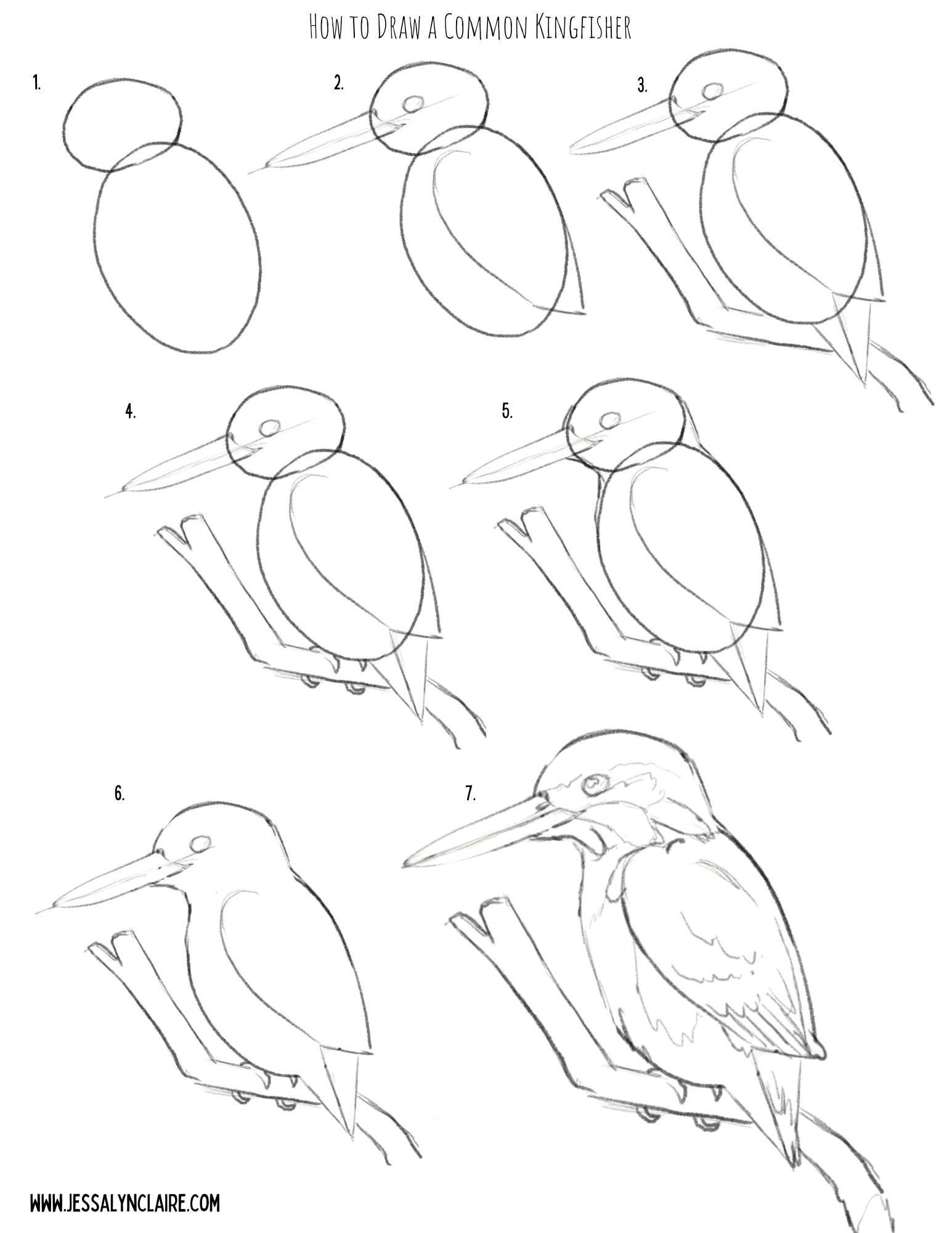
The next step will be to sketch your composition. I have provided a step by step illustration that you can use to practice your oil pastel artwork here, or you can create your own drawing.
Don’t worry about being cautious the pencil for your sketch, unlike other mediums the oil pastel will cover it and it does not stand out on the black paper.


Starting With Oil Pastels
For this tutorial I’ve chosen the Common Kingfisher because as mentioned, blues go down very opaque and bright on the black paper, requiring less experimenting to get the colors to show. However, it also has an area of orange, which is one of the colors that can require putting white down first before adding the color to create the opacity and vibrancy. This will allow us opportunity to discuss and practice both in our painting.
To begin the illustration, I begin with the main subject matter first. This is where I put most of my time into fine details. I focus my detail work on important areas like the face, eyes, etc. Use this to draw the viewers eye to the place in the work you want them to see most.
Notes about oil pastels on black paper:
Some colors go on more transparent and some more opaque.
The most opaque colors are white, blues, greens, pinks, some reds and purples, the light or pastel versions of all of the colors.
The most transparent colors are yellow & orange, some reds and purples, the darkest versions of all of the colors.
If you use white underneath one of the transparent colors it will show up more vibrantly as if it is opaque (but slightly more pastel in color).
Use the black paper to your advantage by let the black paper show through in places for the darkest areas and to create contrast.
Step by Step
STEP 1
Starting with a light blue pastel. Block a thin layer into the areas of blue feathers on your kingfisher. You only need to start with a thin layer. The key to oil pastel is building up in layers, but adding more is easier than removing color from your work. So there is no rush to get thick pigment onto the paper. The point is to block in the light and dark shapes of color so you begin to see the shape form. There is no need to get overly detailed yet, but don’t be overly generic with laying down color either. Try to add your color in the direction of the feathers and pay attention to the shapes of the highlights.


STEP 2
2. Select a color that closely resembles the darker blue hues in the bird and begin the same process, adding marks in the direction of the feathers. Apply it thicker in areas that will become even darker as you progress. Tip: The light blue applies the same principles as the white. Because of its lightness and opacity you can apply it beneath the darker blue to intensify the colors. It is not necessary with the blue hues, and I like to mark in the various shades of blue as they are to give myself the ability to begin to see the shape and structure appear. Keeping this in mind though, it is okay to apply the light blue liberally underneath, as it will blend with the darker hues that are applied on top.


STEP 3
3. Next, referring to the chart above, decide how you will apply the yellows and orange hues, still following the same process as the light and darker blues where lighter colors are applied first and attention is paid to the broad shapes of color. Begin with the lightest yellow or white. I use a pastel yellow because it behaves similar to a white underneath the following layers, but it still adds the warmth and hue of the yellow. If you do not have this pastel, I recommend a very thin layer of white underneath. Mark first the light highlight areas and then follow with the orange hues.


STEP 4
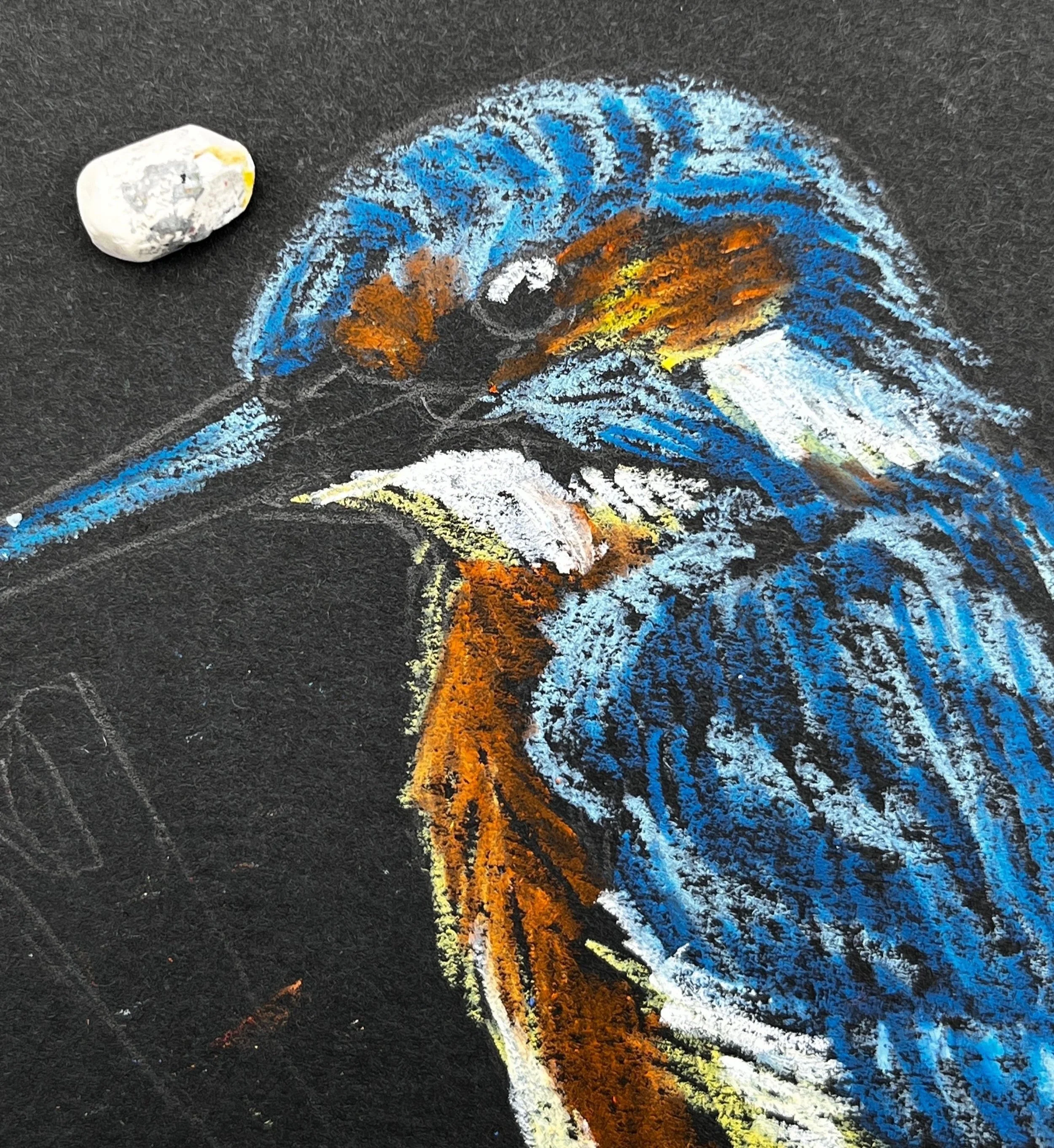
4. Unlike in other mediums, white oil pastels can be applied over other colors that are darker, though it will not always completely cover the color beneath it. This ability is because of its thickness and opacity. This means, that unless you are applying white down before applying a transparent color, you do not have to start with the white areas first, but we will begin working from lighter versions of color, and move darker. Since this Kingfisher has bright white areas, treat them as you have the other shapes of color. They are solid white so you do not have to layer lightly. Simply press harder and take a single pass. Also add in some specks of white for the reflection in the eye and lighten the top of the bill. With both of these areas you can use the black pastel at the end of your artwork to correct any mistakes so just attempt these details with any tip or edge you can find on your white pastel.


STEP 5
5. Next I go over the areas where I have already laid down a layer of color. For the orange chest area, I looked closely at the areas of light and dark within the orange and applied another layer of one, or both of the oil pastels I used previously. Before applying another layer of orange, to brighten the dark areas of orange pastel I very lightly applied a stroke or two of the pastel yellow. In this case it does not color the area, but it adds enough oil and pigment to give the orange pastel something to blend with and creates less transparency. The opaque color will also make the orange more vibrant. If you look closely within each color you will see lots of variation of shades. Squint your eyes and try to focus on the large areas of light and dark that you see left.

STEP 6
6. From here you can continue to go back and forth, layering the pigments up. Add light blue back on top in areas to create the suggestion of the patterns in the feathers. You will know you are getting close to where you want it to be when you start seeing areas of the painting blending and appearing more like paint than crayon. However, it is okay to see some black paper coming through in some areas. Select the areas where you want the pastel layers to be dense, but don’t worry about getting rid of the paper completely. Always build up slowly and thoughtfully. Remember, you can add more easily than you can remove what you’ve already applied.


STEP 7
7. Select a color for the branch. I selected a medium gray and then applied the olive green that will be the background color to the underside. This gives the sense of a reflected light. You do not have to be as careful or slow in building up the color on the branch. You can now blend a small amount of black into some lower areas to create shadow and white on the top edge, or you can wait to do it closer to the end.


STEP 8
8.At this point I begin the background. First I trace around the image leaving a black border between the background and the subject matter. This is my stylistic preference and is optional. Apply the background very loosely, leaving some of the black paper coming through. In order to do this well, you will apply the oil pastel with firmer pressure so that each stroke solidly covers the paper. This prevents the need to make multiple passes.


STEP 9
9. The last step is to touch up with the black pastel. First I apply it into the eye and on the beak. If you accidentally cover the white spots, don’t fret. You can simply come back and press your white pastel onto the spot again and leave another white dot on top. I blend a small amount of black into the darkest shadow areas in the blue feathers to create more contrast. I do not always add black to the black borders around the subject, but I do when I need to clean something up and create a sharper edge.

STEP 10
10. Remove the tape. Tip: To prevent damage to your paper, pull the tape very slowly and angled out rather than straight down. Don’t forget to sign your work!


That’s it! Did you find yourself enjoying the freedom of imperfection? If you have questions or comments be sure to leave them below.




Sparking Creativity | Kids with Oil Pastels | Art Tutorial
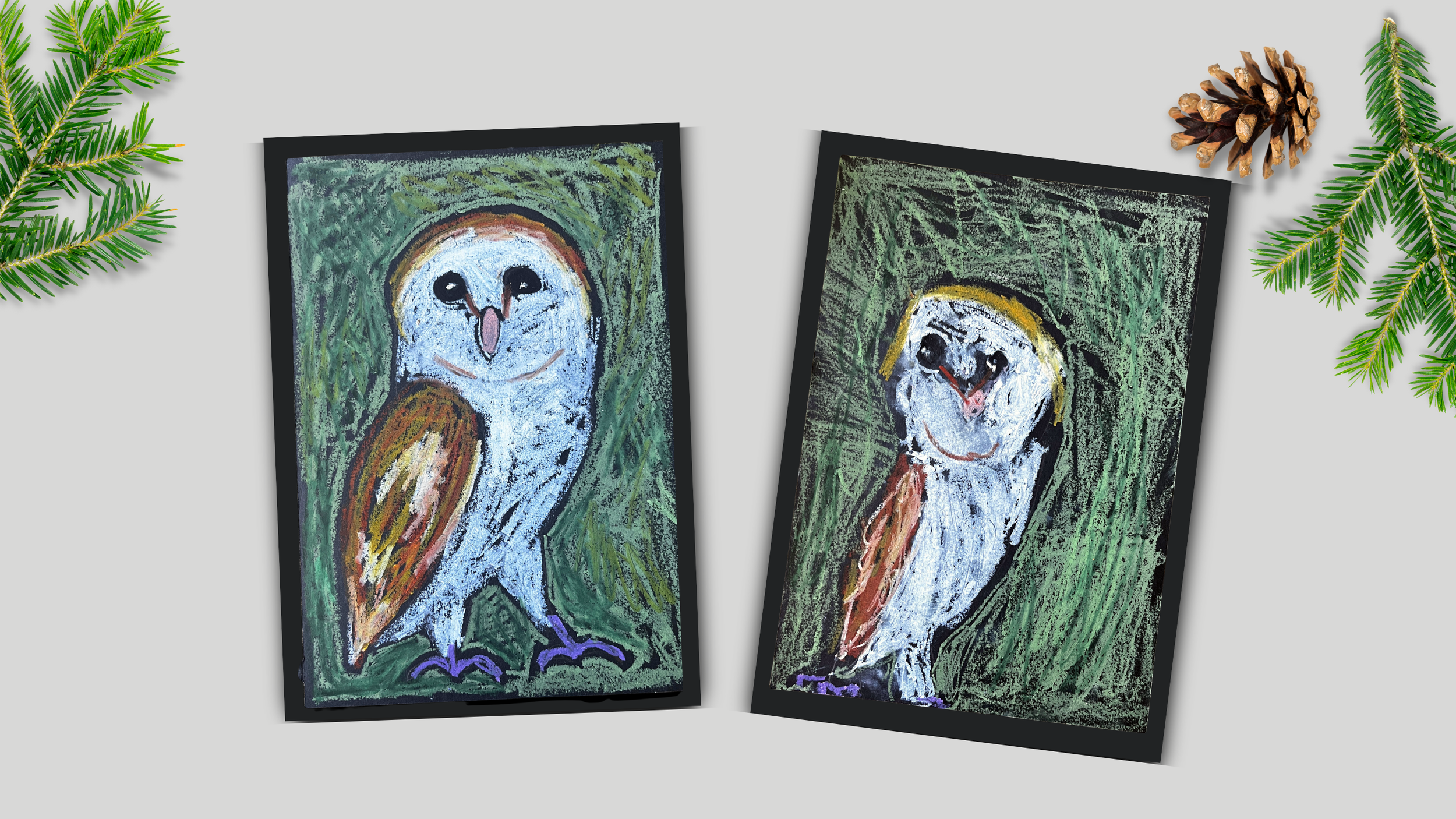
This style is intentionally imperfect but the defining features of the bright oil pastels, with heavy black outlines, created by expressive markings on black paper is like an elevated version of the crayon scribbles we all know and love. It is amazing how this small change from crayons to oil pastels, white to black paper, and some intentional black outlines will create stunningly eye-catching artwork from the same little hands that brought you that lovely chicken-dog blob that has been hanging on the fridge since it came home from school on Father’s Day.
Sparking Creativity
Kids with Oil Pastels- Fun Winter Owl Art Tutorial
This post may contain affiliate links. If you use these links to buy something I may earn a commission at no additional cost to you that allows me to continue to provide useful content. Thanks.
I have been familiar with oil pastels for years, but I really found a new appreciation for their potential during the creation of my children’s book, Little Birder: A Field Guide to Birds of the Alphabet. It was a mound of work to illustrate a bird painting for each letter of the alphabet, a task which I often did with my infant daughter tucked under an arm on my lap. The situation called for a medium and style that suited a one-handed illustrator, strapped to a wiggly baby making continual attempts to eat the art materials. That exciting scenario is where I first began to appreciate the forced imperfection of the stubby little crayon-like colors with a mind of their own.

Fast forward a few years and I still love the signature style of the illustrations in my book, plus I now have an artistic four year old. One day it struck me, this is a PERFECT art project for small hands and developing motor skills. The style is intentionally imperfect but the defining features of the bright oil pastels, with heavy black outlines, created by expressive markings on black paper is like an elevated version of the crayon scribbles we all know and love. It is amazing how this small change from crayons to oil pastels, white to black paper, and some intentional black outlines will create stunningly eye-catching artwork from the same little hands that brought you that lovely chicken-dog blob that has been hanging on the fridge since it came home from school on Father’s Day.
WANT TO READ AHEAD?
JUMP TO:
MATERIALS
The material needs are few for this project. The good news is that once you’ve purchased the parts, your child can continue to enjoy the surprising and satisfying outcomes of putting the bright pastels on black paper. Even without following a drawing or tutorial, those everyday scribbles can have a very modern artist-like feel.
Pencil and Eraser
Optional:
Washi Tape or Painter’s Tape for creating a clean border around the artwork
Kids' Apron to protect clothing
Brown paper roll, or something to protect table or working surface
Please note: Oil Pastels are made with… you guessed it, oil. Unlike the art materials made for children, these are not made to be washed out. If this is a concern for you, you can always opt for a water-soluble set like this and will be more likely to get it out of fabrics.
*As an Amazon Associate I earn from qualifying purchases.
Let’s begin!

Step One: Pencil Sketch
Follow the steps below to sketch your owl drawing onto the black paper. You don’t have to be too cautious because the oil pastel will mostly cover any pencil marks.

Step Two: Add Oil Pastel - Painting the owl
After you have your pencil sketch ready to guide you, you’re ready to add color with oil pastels. If you would like to use the same colors as the example find a selection of these colors: white, various browns, orange, yellow, purple, various greens and a black. Feel free to get creative with your background or details.
Optional: I really like to tape the edges of the paper so that the child can freely paint right up to the border, but when the tape is removed you’re left with a very satisfying sharp edge to the lovely work of art. If you decide to do this, make sure you “unsticky” the tape a bit by sticking it to your clothing a few times before putting it onto the paper. Washi tape is less likely to damage the paper as you remove it, but you make the judgement call. When removing the tape, pull down slowly at a slight angle outward rather than straight down.

Start adding color by taking the white oil pastel and tracing a border around each of the markings on the face. Trace around the eyes and beak, leaving the V shaped marking in the middle of the face. Trace right up next to the outline of the head and inside the body, leaving the wing black. This includes the two triangular leg shapes which will also be solid white.
After creating this border to guide your painting, freely add white oil pastel in scribbling motions into the areas that will be white. Be sure to let some of the black paper show through and don’t paint over any of the features of the face or other parts of the body. It is better to stop far away and come back later than to accidentally go too far.
Next, take a yellow or a pink oil pastel and paint the almond shaped beak, trying to stay within the line.
For the eyes, you can either leave the black of the paper showing and add white oil pastel right up to the outline of the eye to define a black circle, or you can fill in the eye with the black oil pastel. The black oil pastel will cover all other colors of oil pastel, so it is great for cleaning up that black eye circle if you happened to accidentally go too far with the white. To finish the eye, add a white spot on either side of the eye for the reflection, keeping it to the same side of each eye.
Take a brown oil pastel and draw the two lines that run from the inside of the eye down to the beak that create a sort of V-shape. Then add a curved line a small distance from the bottom of the beak to separate the shape of the white face from the white body.
With a lighter brown, gold, or even a light orange color, trace the shape of the wing, defining it from the white of the body with a black outline. Add a light layer of this color inside the wing and then add the darker brown to the upper and lower portions of the wing on top of the first color. Add a few strokes of white in a few spots in the middle portion of the wing.
Take the same two colors and add a “headband” of color to the top of the owl’s head. You can overlap with the white a little to blend the colors.
Choose a color for the feet. I liked the pop of purple against the other colors and the green background, but you can select something true to real life if you prefer it. Draw over the sketch of the feet with your oil pastel however thick or thin you find appealing.
Step Three:Add Oil Pastel- The Background
Remember that the crux of our style is the heavy black outlines that separate large elements from one another in the painting. This can be hard for younger children, as it is a bit like having to stay inside the lines and requires somewhat matured motor skills. You can assist by tracing their owl with the background color and leaving a black outline that is a safe distance away from their work, this allows them to go wild up to that line without as much risk of overlap. Then take the green colors (or bright blue could be nice too) and start filling in the background to look like the spiky needles of a pine or evergreen. To mimic the original style, try to leave some black showing through the marks rather than covering the background surface in oil pastel.
Again, the black oil pastel will cover the other pastels, so you could alternatively let your child try to leave the border and fill the background on their own and then help them redefine the black border anywhere that it has disappeared or needs to be made bolder. You can also clean up the black outlines within the owl in areas like around the wing, and around the beak if you choose to.

AND DONE!
Add some initials or signature, peel the tape and you’re done! Like oil paint, oil pastels take a long time to fully cure so your art will stay somewhat sticky and smear-able. If you would like to spray your art to seal it, try a couple of layers of a matte fixative like this one. (Follow the directions! Adults only.)

Click the image to sign your child up for an oil pastel lesson with me on Outschool.com!


Free Art Class for Kids | How to Draw Realistic Birds on Outschool - Part Two: Guided Drawing Video
Do you have a child that wants to be an artist or learn to draw? This is the guided-drawing video of a Black-capped Chickadee. A free video lesson from my class How to Draw Realistic Birds (and Think Like an Artist) on Outschool.com
If you haven’t watched the part-one learning video, find it here.
want a FREE DRAWING LESSON? Find the video below.
Do you have a child that wants to be an artist or learn to draw? This is the guided-drawing video of a Black-capped Chickadee. A free video lesson from my class How to Draw Realistic Birds (and Think Like an Artist) on Outschool.com
If you haven’t watched the part-one learning video, find it here.

Free Art Class for Kids | How to Draw Realistic Birds on Outschool - Part One
Do you have a child that wants to be an artist or learn to draw? In this post I share the first video from week one of my How to Draw Realistic Birds (and Think Like an Artist) class on Outschool.com
Keep reading to learn more about learning on Outschool and find the free learning video.
want a FREE DRAWING LESSON? Find the video below.
Do you have a child that wants to be an artist or learn to draw? In this post I share the first video from week one of my How to Draw Realistic Birds (and Think Like an Artist) class on Outschool.com
Keep reading to learn more about learning on Outschool and find the free learning video.
Not everything that changed in the pandemic era is for the worse. (I mean, a lot of it was pretty awful, let’s not let that go too easily.) However, one of the most interesting, if not most important, changes that we have seen is the shift toward online distance-learning. The world that was already at our fingertips through the internet, is now the world of knowledge to be learned from the comfort of our own home and the convenience of our own time-zone… and it is pretty awesome.
THE SILVER LINING
There are significant downsides to children attending kindergarten from a screen at home, and yet there is also a silver-lining in the situation. That is, we’ve realized that if our kids can learn how to multiply from their local math teachers from the living room couch, then why can’t they learn to draw, code websites, bake, dance, speak a new language, make origami, or whatever their little hearts desire to know too? That is where platforms like Outschool come in. Outschool boasts of 140,000 classes to choose from for ages 3-18. Outschool has multiple formats for classes in core subjects like math, science and history, but it also has offerings of art, hobbies and just about any subject you can dream up. Outschool focuses on small-group, interactive experiences that take place live, but there are also opportunities to learn without a live meeting.
Let’s learn a little more about Outschool before moving on to the FREE part-one video lesson from the first week of my class How to Draw Realistic Birds (and Think like an Artist)
What is Outschool?
Outschool is an education platform that offers online classes for kids ages 3-18. Unlike traditional classes, Outschool classes let kids explore their interests with live Zoom classes taught by experienced, independent educators.
What kind of classes are on Outschool?
Live classes- Live classes meet over video chat in the classroom for the schedule timed. This format is just like any online class scenario that we have come to know.
FLEX Classes - While the vast majority of Outschool classes feature scheduled, live meetings using the video classroom, it also offers the option of flexible schedule (“flex”) classes, which don’t rely on live meetings. In a Flex Class format, teachers conduct the class by posting videos in the Outschool classroom and engaging with learners asynchronously. Flex classes run for a minimum of four weeks.
What are the options for class length on Outschool?
One-time Classes- These are classes that meet only once. They can be a great option for filling in a school holiday, or a last minute Saturday activity. (Yes, there are tons of classes that happen on the weekends.)
Multi-Day Classes- These are classes that meet more than once. This can range from two meetings all the way up to a semester class. Multi-day classes that meet more than once in a week are considered camps.
Ongoing Classes- Ongoing classes meet weekly and do not have a set start or end date. Sign up for ongoing classes similar to a subscription. Any time you need to miss a week you can stop your subscription and re-enroll when you are ready to return. I like to call my ongoing art classes “clubs”, because students often stay together for long periods of time, allowing for familiarity between the students.
What size are the classes on Outschool?
Group Classes - Group classes on Outschool vary depending on the age range, but all group classes are capped at 18 learners.
1:1 Classes - 1:1 classes are private classes with the teacher and topic of your choosing. It is a great opportunity for affordable tutoring or 1:1 learning time that is tailored to your student. Interested in 1:1 art lessons? Find my classes here. (Available for ages 6-18)
Semi- Private - Many teachers offer semi-private lessons that provide the opportunity for lower cost classes that have the same personal interaction with your student as a private lesson.
Way to go! Now that you’ve learned how to see basic shapes for your sketch and draw what you see in front of you, click the button below to find the guided-drawing video of a Black-Capped Chickadee.

Procreate for Kids - 5 Age Appropriate Digital Art Activities
Some people might tell you that Procreate is too advanced for kids, especially young kids. They would be right— if you’re expecting your child to master the software and use it to its maximum potential. Consider that most adults only have a partial grasp of the potential of the Procreate app, even those of us who use it nearly every day. While true, it shouldn’t be the deciding factor. You could opt for something “made for kids”, or you can expose your little one to the real-deal creative software that is made for artists— with the understanding that just like any medium you give them (crayons included), mastery of the medium is not required for it to be worthwhile. With the right supervision and guidance, everything they can do on paper, they can do digitally. It is boundless creativity and a great way to practice their motor-skills. And the cool thing is that you can do it with smaller environmental impact (so much less paper waste.)
Procreate for Kids
5 Age Appropriate Digital Art Activities
This post may contain affiliate links. If you use these links to buy something I may earn a commission at no additional cost to you. Thanks.
Do you have a creative young child and you’re wondering what you can do to help them develop their skills?
Have you ever considered digital art? Getting your kids started with digital art is a great way to give them early exposure to a skill that will be beneficial to their creativity in their future.
In this blog, we will look at the digital art software Procreate, and I will share a list of age-appropriate activities for little ones as young as 4+. You can start using these ideas now while they are learning how to navigate the technology, as well as their art and motor-skills.

The digital art world is expansive and there is much to learn, but in this tutorial I will be focusing on ways your little ones can use the Procreate app. As a mother and an art teacher, I have seen many children use it with great success. I will share with you a few of the activities developed with my own four year old daughter, as well as some I’ve developed based on my experience teaching various age groups.
What is Procreate? It is a real-deal creative app created for real artists.
Some people might tell you that Procreate is too advanced for kids, especially young kids. They would be right— if you’re expecting your child to master the software and use it to its maximum potential. Consider that most adults only have a partial grasp of the potential of the Procreate app, even those of us who use it nearly every day. So while true, it shouldn’t be the deciding factor. You could opt for something “made for kids”, or you can expose your little one to the real-deal creative software that is made for artists— with the understanding that just like any medium you give them (crayons included), mastery of the medium is not required for it to be worthwhile. With the right supervision and guidance, what they can do on paper, they can do digitally. It is boundless creativity and a great way to practice the motor-skills they are developing at each stage. In fact, the extra hand-eye coordination practice is what I love most about using Procreate with the 4+ age group. And, you can let them practice page after page (after page) with a smaller environmental impact (so much less paper waste).
In this tutorial, I will give you an overview of the coolest uses and activities I have found for kids using Procreate (listed by age.)
Quick Links
The tool List
First of all, you’ll need the tools. Below you can find a list of all of the tools you’ll need to be able to get started in digital art. You don’t need that much to get started. You may even have an iPad that you allow your kids to use already. If that is the case then you’ll need a digital pencil (or stylus) and the Procreate app. You can even manage without the digital pencil if you really want to keep it simple.

Apple Pencil- I use an Apple Pencil for my digital art. When looking for an Apple Pencil, you can find a 1st Generation and a 2nd Generation version, and just like any gear you could find a refurbished version for less money. You will want to do some research about which pencil is compatible with your iPad.
Procreate App- There are other digital art softwares out there, but Procreate has taken the digital art world by storm. It is user-friendly, CHEAP, ever-expanding and unbelievably diverse. Find the Procreate software in the app store for $9.99.
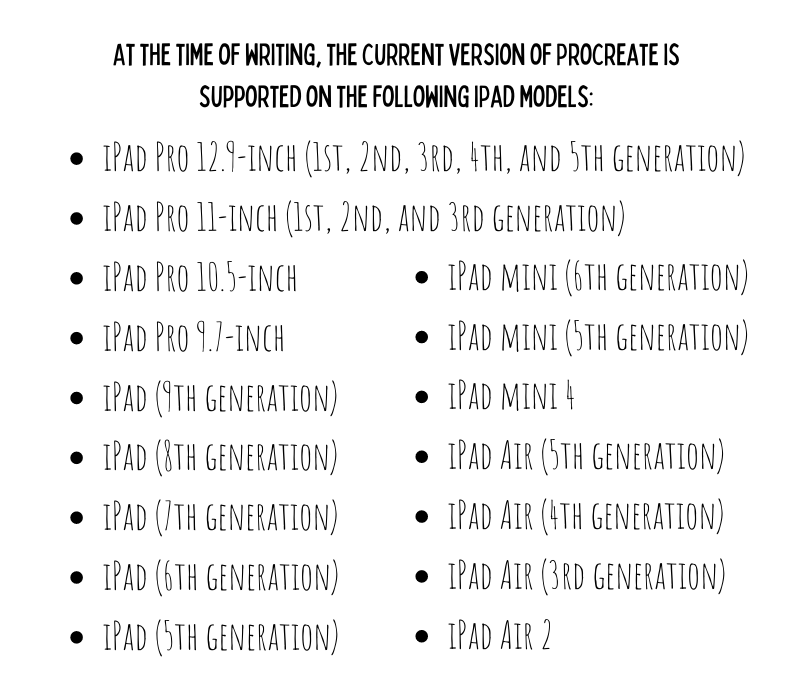
Ipad - Find an iPad that suits your budget. Below I have listed the compatible versions of the iPad from the Procreate website. Check the list below and do your own research to make sure you’re getting something that will be able to run the Procreate software.
Extras- All you really need to get started are the three things above, but if you get excited, there are tons of Apple pencil or iPad accessories that will offer some protection from the wear and tear of little hands. (All of these are clickable.)
Cute cat pencil cover
All kinds of cute covers (pay attention to which pencils they fit)
*As an Amazon Associate I earn from qualifying purchases.
Ages 4+
Quick Snap Function - Scavenger Shapes
Drawing Assist Tool - Mandalas
Color Fill - Color Fill vs. Color Skill
I bet it will shock some to know that I think Procreate is awesome for kids as little as 4 years old. As an artist-mom, my daughter sees me draw on my iPad all the time. I use the drawing app both for my own art and teaching art lessons to kids online. When she begged me to let her take a turn using my digital pencil on Procreate, I decided to give it a try to test my theory that there was value in early exposure to that skill, and that she would pick it up alarmingly quickly. Of course she did, and absolutely adores it. But it’s not just fun. It has also been a very worthwhile learning experience for her.
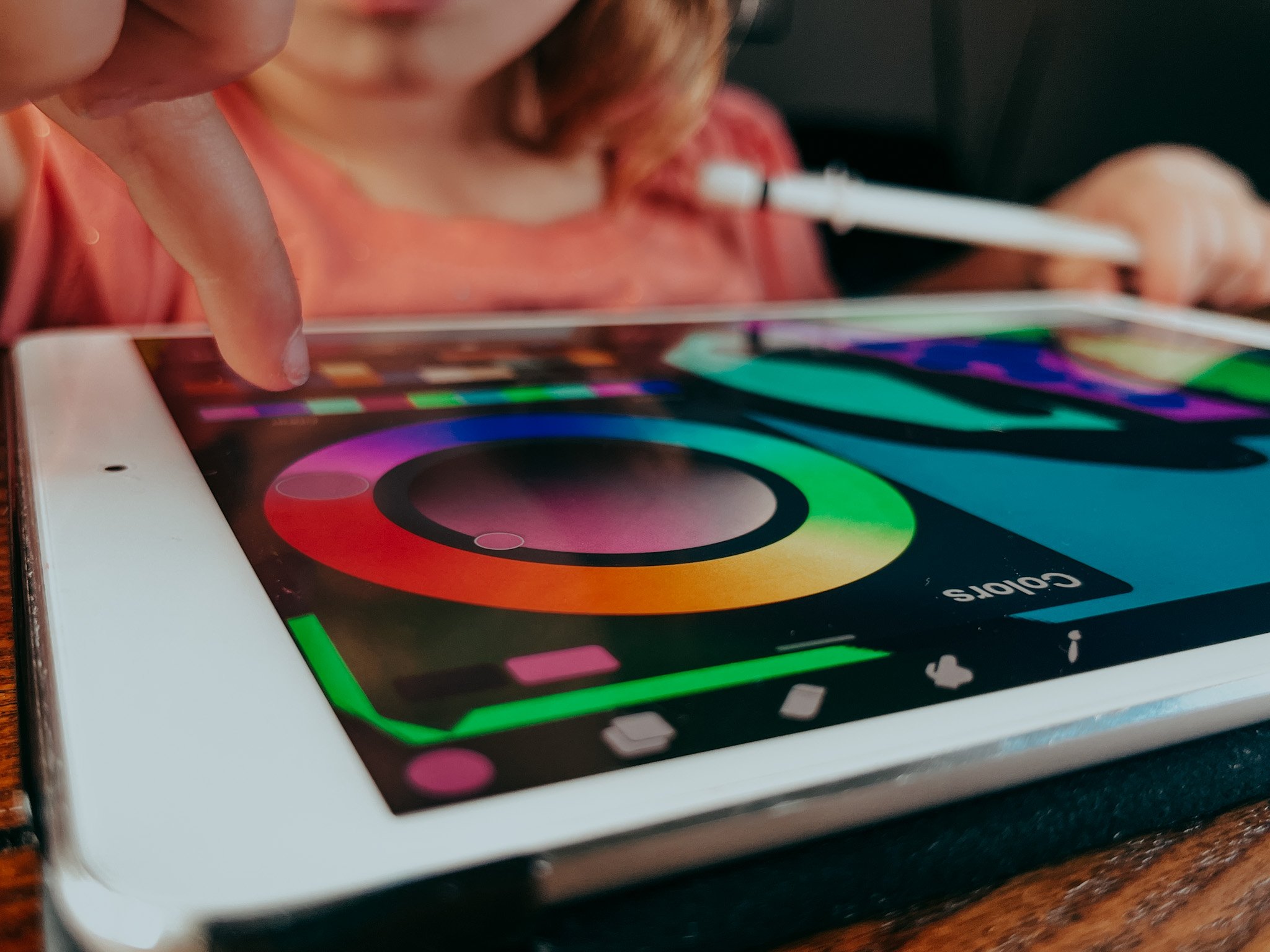
Don’t be fooled by the advanced technology. Your littlest little ones are developing all of the motor skills used for writing and drawing, so just because they won’t be mastering the technology or even the art skills right away, does not mean there isn’t value to introducing them to the digital medium. This creative software is a new art medium just like any crayon, pencil or paint they try for the first time (and frankly it is probably their future.) In the same way that no one expects a child to master their painting skills at four just because someone put some tempura paint in their hands, you can set the expectation of output that is in line with their developmental stage. You don’t have to think about the value in terms of their knowledge or skill deficit, but rather as the introduction to another new creative experience that they will build on as they grow.
1. “Quick Snap” Perfect Shapes
Procreate has a function called “Quick Snap” that corrects the wobbles in your drawn shapes, such as circles and straight lines. It’s very simple and you won’t have to play with it long to get a sense of how it works. You can think of this a little like a digital ruler tool.
Basically, when you draw a circle rather than picking your pencil up when you have reached the beginning, hold it down and watch as the shape “snaps” to a clean version of the shape you’ve just drawn.
Same idea with drawing lines. Draw a line and hold your pencil down to see it snap into a straight line. Keep holding and move the pencil (or your finger) around to change the angle and length of the line. If you decide you do not want the perfected version of the shape you’ve drawn, just hit “undo” and it will return to the organic, hand-drawn original.
Let your young child try this out and watch their little face light up when their wobbly little lines snap into smooth shapes. I think the ability to create something that seems allusive to a small child makes them feel very powerful and gives them confidence, which is exactly what art should do at this age.
Unless your child never draws on paper again, I wouldn’t worry too much about it hampering their analog drawing skills. To keep things in balance, I will challenge students to try to see how well they can draw a circle or line without using the quick snap function and make comparisons to the corrected one. As my daughter plays and proudly shows me things she has created I will encourage her with something that sounds like, “Who made that amazing line? Whoah. I bet if you keep practicing your drawing skills you’ll be able to do that WITHOUT any help.”
Activity: Scavenger shapes
This activity is really simple. Use the list below, or make up a a list of your own to create a “Scavenger Shapes” game. Basically, it is a scavenger hunt but rather than finding the objects, they are creating them. Give them the list of shapes created by either a straight line or circle with the quick snap tool and let them recreate each one. I like to use the monoline brush in calligraphy, but you choose a brush you like.
Scavenger Shapes Ideas
Perfect Circle
Skinny Rectangle
Oval inside of an oval
Diamond
Triangle inside of a circle
2. Drawing Assist Tool
Another awe-inspiring tool for children is Drawing Assist, another sort of invisible ruler. This tool is exactly what it sounds like — it assists your drawing. There are multiple ways this can be used, but today I am going to focus on a few of the “symmetry” guides. The symmetry setting in drawing assist duplicates every mark on one side of the canvas exactly the same on the other side of the line, making a perfectly symmetrical drawing.
How to: Starting with Actions menu (the little wrench) click the Canvas icon. Below you will see an on/off toggle for “Drawing Guide”. Turn the guide on and then click “Edit Drawing Guide”.
The drawing guide will open up to a grid that you can adjust, but, to create symmetrical drawings, find “Symmetry” in the lower right corner. Below it find “options”. Clicking options will prompt you with four options: vertical, horizontal, quadrant, and radial. These options are somewhat self-explanatory, and you can play around with them to discover what all can be done, but I find that vertical and radial are the most fun for kids.
Vertical
Use vertical drawing guide to create drawings that are symmetrical on the left and right sides. This can be exciting for drawing things like butterflies, flowers, hearts, or anything that you want to be mirrored on each side of the page.
Radial
The radial drawing guide is where things really get exciting. This drawing guide splits the canvas into 8 even sections, radiating from a center point. Anything you draw in one of the sections will appear in all of the remaining sections. This is perfect for flowers, mandalas, and some generally trippy, cool drawing fun.
*Parent-Hack: For your younger children, you will probably have to set up the canvas to use this feature. Rather than going through this process over and over one thousand times (and they will want to do it that many times), do this instead: When setting up the canvas, after creating an assisted drawing layer duplicate it a few times. Then each time they are finished and want to do it again, simply uncheck the layer to hide it and tap the clean blank layer below. Troubleshooting: If you add a new layer rather than duplicating the original layer it will appear with the same guide lines but it will not mirror the marks. If you find that the marks are not being mirrored but the guide lines are still visible, simply tap the layer and making sure there is a check by “Drawing Assist”.
Activity: Mandalas

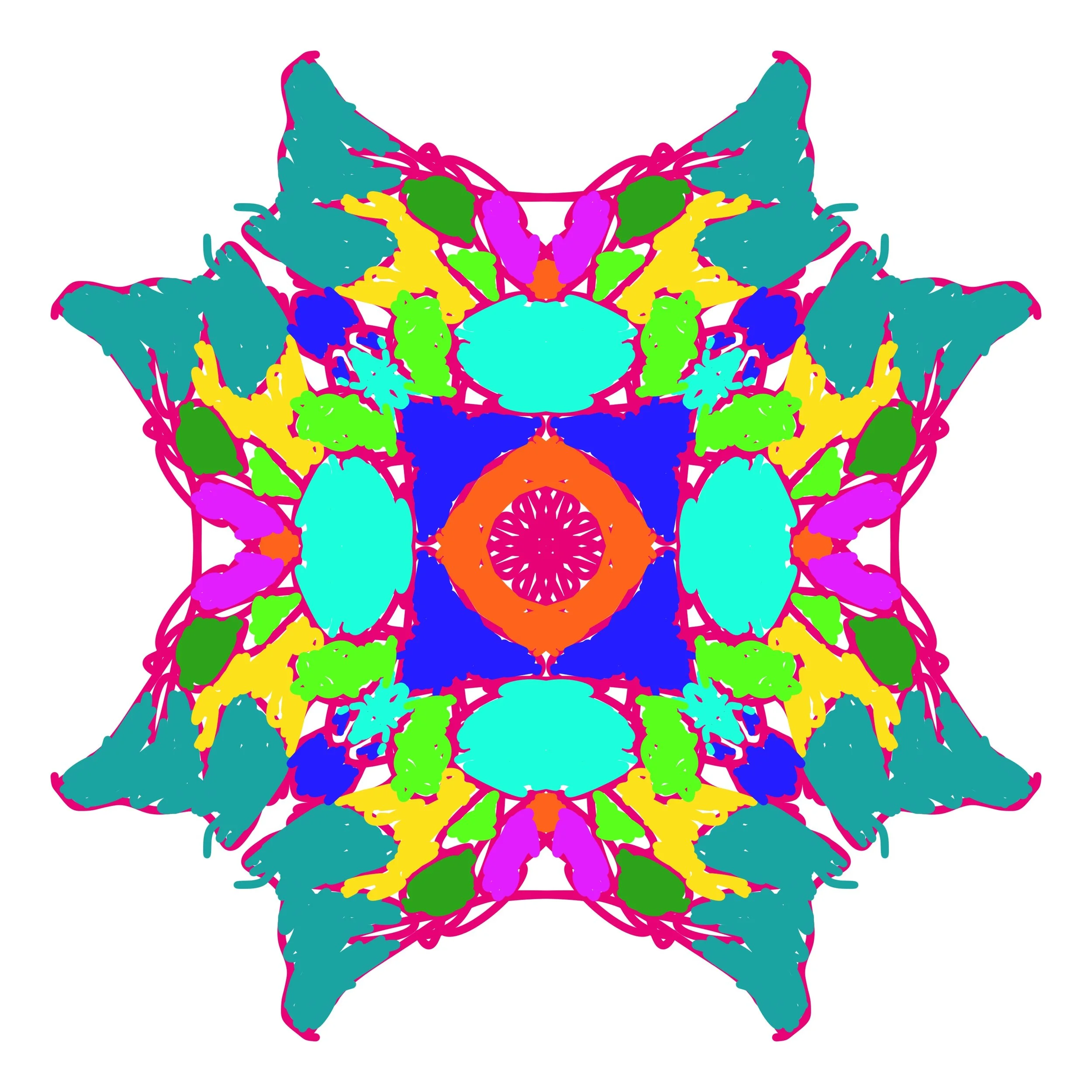

To set this activity up for your child, create a new canvas and turn on the Radial Drawing Assist. (See the instructions above.) Choose the monoline brush or a brush that does not have a texture. You don’t need to grasp the technical reason for using a brush without texture, but it has to do with the way the brush is created, and some can have even single pixel sized gaps in what appears to be a solid line. Remember that if they would like to add color using the color fill after they have drawn their mandala, you will want a brush that does not have gaps in its texture.
Once the radial drawing assist is turned on, they are basically ready to start creating their mandala masterpiece. You can prompt them with directives like, Try using only curvy lines, etc. Or you can let them do their thing. Read Color Fill below to learn a fun way to add color after they draw their designs.
Parent hack*: Save yourself the interruptions every few minutes (seconds) when your child is finished with drawing and would like to do another. When you begin your canvas and you have a layer set up with guides, duplicate the blank layer as many times as necessary. Set your child up drawing on the top layer. When they are done with that drawing, simply uncheck the layer to make no longer visible and then tap the next open layer and let them go for it. Once you have it set up, your child can probably learn the process quickly and will only need you for troubleshooting. Troubleshooting: If a dialogue box pops up about hidden layers, it probably means you’re still trying to draw on a previous layer that you have hidden. Always make sure that you are drawing on the visible layer, or that the box to the right of the layer is checked for the clean layer where you are drawing.
3. Color Fill
The drawing assist feature you just learned is the perfect precursor to the Color Fill function because after drawing those amazing symmetrical drawings, children can fill them with color. It is a fairly straightforward process. Anytime you draw a closed shape in Procreate (more about that momentarily) you are able to drag your selected color from your color options and “fill” the space. This would be the alternative to manually coloring inside of the lines to fill the space as in our coloring books.

How to: In the upper right hand corner there is a colorful circle. This is where you find all of the many color options for selecting the color of your brush. Tap the circle to open and you will see two concentric circles with draggable dots inside. The outer circle is the color wheel that allows you to choose which color family you would like. Drag the dot in the inner circle to choose the saturation, brightness and intensity of your color. Play with this for a few minutes and you will probably have a good understanding.

Choose a color then tap the colorful circle in the right hand corner again to collapse the color menu. Now you can see your selected color in the circle. Touch and hold that circle and drag it into the space you would like to color. If you are filling an empty canvas it will fill the entire space. If you have a shape drawn, you can drag it and release once you see it fill the shape or space you are trying to fill.
Troubleshooting: If you drag your color and it fills the entire canvas instead of the shape you are trying to fill, it is probably because the shape has a gap somewhere where it meets another line. The color fill will “leak” out of any open spaces, even down to the smallest pixel. Try drawing over the point where your lines meet to make sure there are no gaps, or choose a brush that does not have an open texture and try again. At times you will also accidentally change the color of your outline. If you don’t want this, remember that you can hit the backward arrow and undo, and zoom in to make it easier to hold your finger in the space you are intending to fill.
Activity: Color fill vs. Color skill
Set this activity up by creating a layer with the vertical drawing assist guide on. First, ask them to draw a set of shapes on one side (which will be copied onto the other side of the canvas.) Then turn the drawing assist off by tapping the layer and unchecking next to Drawing Assist. Alternatively, you can ask them to draw two sets of shapes on each side and draw a line down the middle.
Then select a brush that mimics a crayon or paint brush for side they will color manually. I recommend oil pastel in “Sketching” or wet acrylic in “Painting” because they are interesting and mimic materials they could use, but you can find any one you like.
Next ask them to “fill” in the shapes on the left side and “color” in the shapes on the right. You can either leave them to discover on their own, or prompt them to think about the differences in what they are doing by asking questions like,
Which way of coloring is faster?
Which one looks more like paint (or crayon, etc.)?
Pre-drawn coloring pages

As I already mentioned, children can fill the intricate mandala designs they have created. It is a lot of fun to drag and drop color into all of the crazy shapes and designs.
Another option to adding color to their own artwork is to add a pre-drawn coloring page to their canvas and let them “color” using their new color fill skill.
Since part of the aim at this age is to help them learn their way around the technology and to tune the specific motor-skills necessary in the digital world where they will inevitably exist, not every activity has to be geared toward art skills.
Yes, it is technology so we know they will get sucked in, but it is technology with a purpose. There ARE skills being learned from this activity, not the least of these being the time they spend selecting and arranging colors on the color wheel will help develop their understanding of color and help them develop an intuition about using color in art.
I find it so interesting to watch the laser-focus of my four-year old as she thoughtfully (and skillfully) selects her color from the color menu and then drags each one to fill the carefully chosen space. This is a GREAT activity when you need them to be otherwise engaged for a long period of time… and it is mostly* self-sufficient.
Ages 6+
Working with Layers- Layer Monsters
Brushes- Brush Scavenger Hunt

The chances are that by six, kids have had enough exposure and experience with technology that they are becoming adept at finding their way around new tech. Keeping that in mind, the possibilities for this age group are fairly expansive. Today, let’s focus on the synergy between the developmental stage of this age group and the slightly more complex uses of Procreate to find a few fun ideas that are both creative and educational.
Working with Layers
Layers in digital art allow work easy work flow. Imagine your layers as transparent pieces of paper stacked on top of one another. You add work behind a previous layer, rearrange layers, add layers and even turn their visibility off. This allows for a lot of creative control.
What are the main uses of layers in Procreate?
Creative control- Working in layers gives you a creative control that would be impossible in traditional mediums. As one example, when working on paper you are not able to decide whether to put the next layer above or below the previous. In digital art, you can.
Preserve work as you go- Digital art allows for a lot of fixable error. Obviously you can undo almost anything, but one of the ways that we preserve our work is by working in layers. Thanks to the ability to add and duplicate the layers at any stage, you have the ability to save your work as you go. Do this by using new layers as you work, and by duplicating layers of artwork at critical stages in case you need to go back.
Rearranging and playing- Layers allow for trial and error. Rearranging the layers will change the effect and appearance of each layer and you are able to test the best arrangement. Layers can be deleted and turned off, so it also allows for trying out different versions of your art until you are satisfied.
Creating multiple versions- Similar to the last note, you can create many versions of the same artwork without having to start from scratch.
Activity: Layer Monsters
To goal of this activity is to help familiarize your child with the concept of layers and get used to adding, rearranging and preserving layers. The end result will hopefully be some silly looking monsters. Lead your child through the instructions below once and I am confident they will be ready to do it on their own quickly.

Step by Step Layer Monsters:
Add a new layer and move it below the shapes layer.
On this layer, ask them to choose different colors and brushes to color each shape. Since they are on a new layer, they won’t be able to color fill (read about color fill above) and they will have to manually color with the pencil, but they will find that, unlike working on paper, their marks do not cover the lines of their shapes. Fun tip: by picking a textured brush and going outside of the lines of the shapes, they can create a “furry” or textured monster. Encourage them to be creative and do each one differently.
Begin a new layer on top of all of the layers. Selecting the brush previously used for the shapes, draw two circles for eyes on each monster. Inside of those eyes add a smaller circle. On this layer, have them use color fill to fill the larger circle white and the smaller circle either black, or the color of their choice. Fun tip: after this they can add a white dot in each of the smaller circles to make the eyes look like they have a reflection. Do this on a new layer on top if you feel up to the challenge.
On the same layer add silly arms and legs.
On the same layer as the eye circles, draw a mouth. Guide them to make sure the shapes are all closed shapes so that they will be able to use the color fill function in each shape. Add triangle teeth for a scary monster, or rectangle teeth for a silly monster. As long as each of these shapes is fully closed with no gaps, they can then color fill the teeth and the inside of the mouth (if they have one.)
Lastly, add a new layer, but this time drag it all the way to the bottom underneath all of your drawing. In this layer they can play by adding a background. They can fill it will a color and then draw on top of the color, or they can simply add grass. What they will find is that because this layer is behind their monster drawings, even if they run their pencil straight over the drawings, it will only show up in the background. COOL.
Repeat and change as they get comfortable. You can use this as a chance to prompt them with things like “Draw a furry, orange monster that looks silly.” or “Draw a tall green and blue monster with sharp teeth.”, etc. Prompting challenges them to explore the app more intentionally because they are looking for something specific rather than selecting something they happen to find. Intentional exploration will speed up the retention of what they have done.
2. Working with Brushes
Brushes are the tools for creating the real-life textures in digital artwork. In digital art, brushes are not just used for the painted textures. Brushes is the term used for the tool used to make marks on the page. Brushes can mimic the textures and strokes made from real artist material, or perfectly replicate complicated textures like hair, concrete or water.
What kinds of brushes can you use in Procreate?
Sketching- These brushes mimic graphite pencils, technical pencils, pastels and artist crayons.
Drawing-This set of brushes offers a mix of wet and dry mediums.
Inking - Include a variety of ink-and-brush styles, technical pens, markers, gel pens, and dry ink effects.
Painting - This selection of brushes covers mediums from acrylic to stucco to oil. They offer a range of brush behaviors including the drag of an aged brush and the smear of an oil brush loaded with turpentine.
Artistic - Texture effects from watery to clumpy. They build up or strip away color to reveal an underlying texture of paper or canvas.
Calligraphy - Create smooth and even calligraphic forms
Airbrushing - Lay down pure color and smooth gradients fast.
Textures - A unique set of realistic textures that mimic a wide range of surfaces and patterns.
Abstract - Brushes that change color, create smoky effects and generate chaotic shapes.
Charcoals - Realistic charcoal brushes is ideal for studies, portraits, and life drawing.
Elements - Smoke, flames, water, clouds, and more.
Spraypaints - A variety of spatter and spray effects.
Materials
Vintage
Luminance
Industrial - concrete, metal, stone, and rust effects.
Organic
Water
Activity: Brush Scavenger Hunt
This activity is meant to give a little direction to their aimless wanderings and also help familiarize them with the tools available. Use a list like the Brush Scavenger Hunt list below, or create your own then begin a new canvas.
a brush that looks like paint
a brush that looks like water
a brush that is see through
a bumpy brush
Once they have mastered that list, make it a little more challenging by adding color directives. So with each one add a color. Find a red-orange brush that looks like paint, a light-blue brush that looks like water, a brush that is see through and makes green when you add a layer of blue over a layer of yellow… and so on.
There you have it. Five Procreate activities for kids as young as four. These activities are geared toward helping your little one familiarize themselves with the technology and process of digital art. If you’re interested in helping improve their art skills along with that, click here and check out my online art classes. You can find classes like Little Birders- Drawing Realistic Birds, private 1:1 Procreate lessons, or weekly drawing clubs like Let’s Draw Bugs, Reptiles, and Animals. (Don’t see a time that works for you? Fell free to message me to work out a class for your schedule.)
You can also follow this link to access the first week of my 5 week FLEX class, “How to Draw Realistic Birds (and Think Like and Artist)” for free!
Happy creating!

Oil pastels are an exciting and versatile art medium. Their convenient versatility can be the aspect of oil pastels that make them confusing to beginners. There are more than a few ways to use oil pastels. Which way is the right way?
The good news is, one of the greatest freedoms in art is that we are not bound to use the mediums in the same way others use them, or for that matter, how they’re intended to be used.
If you can get comfortable with that, then you can have endless success in oil pastel. This post is about making the most of the oil pastel’s ability to be loose, expressive and imperfect. I will introduce you to the benefits of oil pastel in its loose form. At the end of the post you can find the link to an oil pastel tutorial in the style of my children’s book illustrations.